Heinrich VenturesAI & IT Delivery Consulting

Media Thresher Beta: Separates the wheat from the chaff.

Media Thresher finds duplicates, blurry and broken shots, straightens tilted photos, repairs damaged videos, fills in missing locations and fixes the date in the Finder – right on your Mac. Your photos never leave it.

Starting point

Collections grow – and spread across many places.

Photos and videos live on your Mac, on a NAS, in cloud folders and in the Photos library – often twice, sometimes broken, rarely with a location. Media Thresher brings order to them without you having to look at every photo yourself.

  • The same holiday photos sit on the Mac, on the NAS and in the Photos library.
  • Shaky, too dark, eyes closed – and still kept for years.
  • Hundreds of screenshots and documents hide between the family photos.
  • The camera doesn’t know where the photo was taken – the iPhone does.
  • Old AVI, MKV or WMV videos no longer play on the Mac.
  • Your folders should go into the Photos library – or back out again.
  • In the Finder, thousands of photos show the date they were copied.
  • Every Live Photo carries a video that takes more space than the photo.
  • Photos are tilted or lie on their side.

Case study

315 GB freed and about 590 hours saved.

Media Thresher grew out of a real private collection: around 158,000 photos and videos in folders on a NAS, plus a Photos library with around 93,000 more, stored in iCloud.

The result: around 315 GB can be removed, 17 GB of it already cleaned up – storage that no longer needs backing up or syncing. For every photo and video, the best file is kept.

250,000 photos and videos 2,537 GB on a NAS and in Photos
40,800 duplicate and similar photos plus 1,600 duplicate videos
142,640 photos and videos with the wrong date in the Finder plus 821 old videos for MP4 and 1,205 Live Photos
315 GB freed 194 GB duplicate videos · 75 GB similar photos · 28 GB exact duplicates · 17 GB already cleaned up
By hand about 590 hours almost 15 weeks of full-time work, just to look through, compare and fix everything
With Media Thresher one working day to review and confirm; the analysis runs unattended in the background beforehand
How we calculated this
Task by handAssumptionHours
Look through 250,410 files once to find duplicates and bad shots2 seconds per file139
Decide 33,518 groups of duplicates and similar photos15 seconds per group140
Straighten 18,309 tilted photos30 seconds per photo153
Check 9,459 videos for errors10 seconds per video26
Convert 821 old videos to MP41 minute per video14
Compare 1,426 groups of duplicate videos1 minute per group24
Crop 242 screenshots30 seconds per photo2
Find and assign places for 109,069 photos in 671 folders3 minutes per folder34
Set the file date in 1,422 folders with an extra tool2 minutes per folder47
Save 1,205 Live Photos as photos in Photos and delete the Live Photo30 seconds per Live Photo10
Totalabout 590

Not included: matching the camera’s time to the iPhone to the minute so camera photos get the iPhone’s location and the right date. That is hardly feasible by hand.

Features

Nine tools for a tidy collection.

From duplicates and old videos to missing locations and wrong dates: each tool takes care of one typical problem in collections that have grown over the years. The (i) next to each heading explains in the app what the section does.

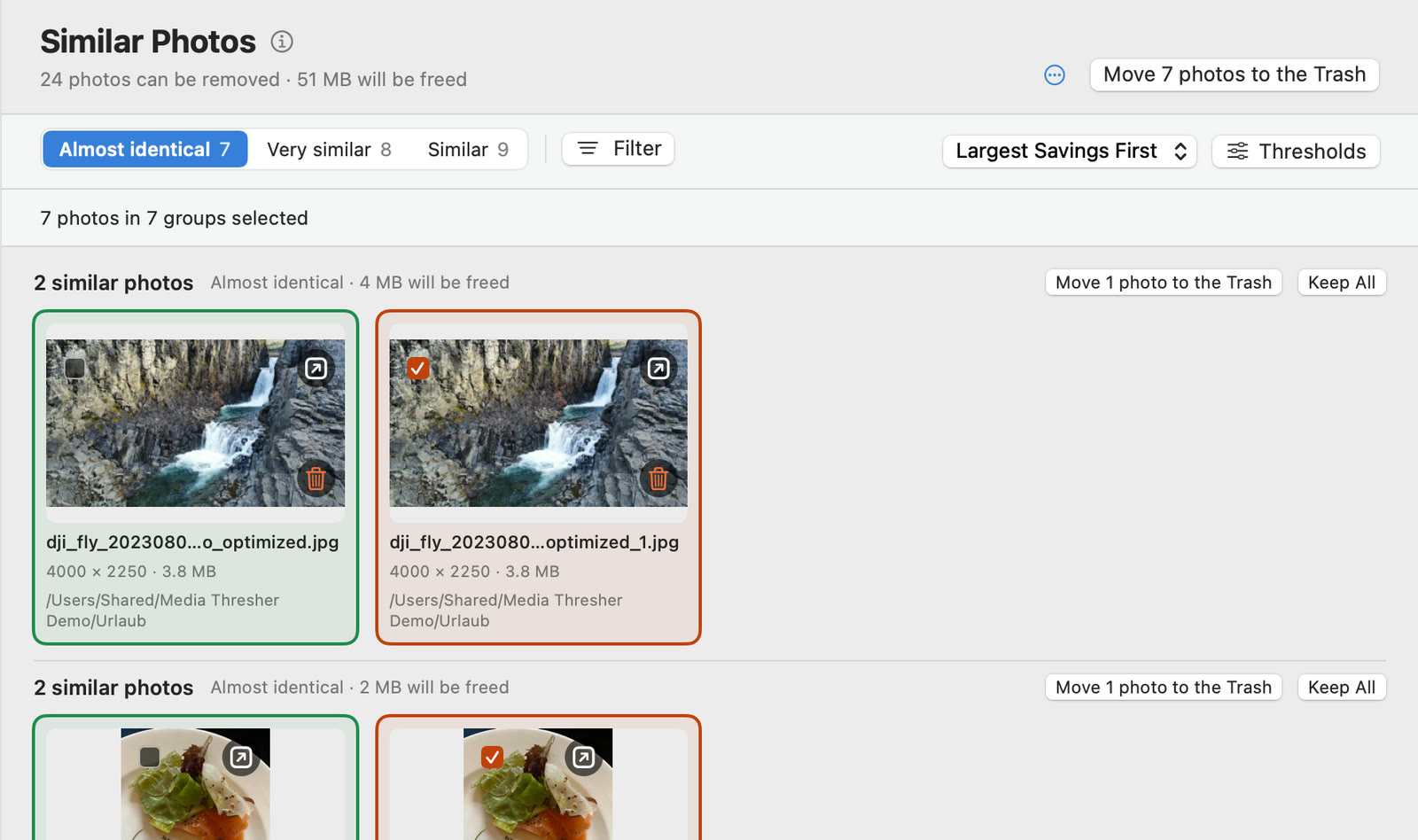
Duplicates & similar photos

Finds exact duplicates that are completely identical, and also similar photos – the same photo in a different size or quality. The best photo is already preselected to keep.

  • Across folders, NAS and the Photos library
  • Duplicate videos, too
  • Large preview: browse with the arrow keys, select with the space bar
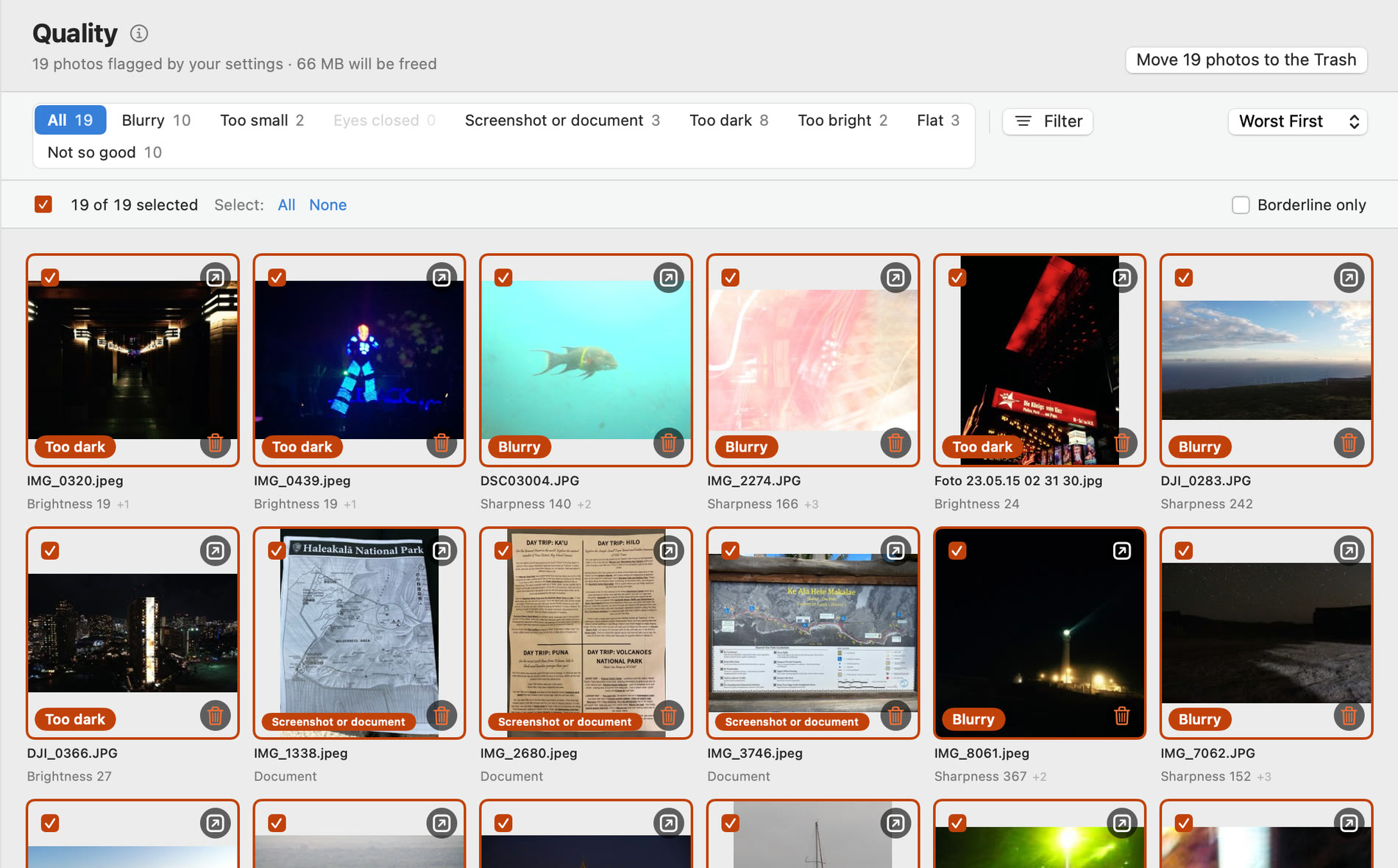
Quality

Tracks down photos you probably don’t want to keep. You set the thresholds with sliders, and the list updates instantly.

  • Blurry
  • Too dark or too bright
  • Too small
  • Closed eyes
  • Screenshots and documents
Schematic: thresholds set with sliders, matches appear instantly.

Straighten & crop

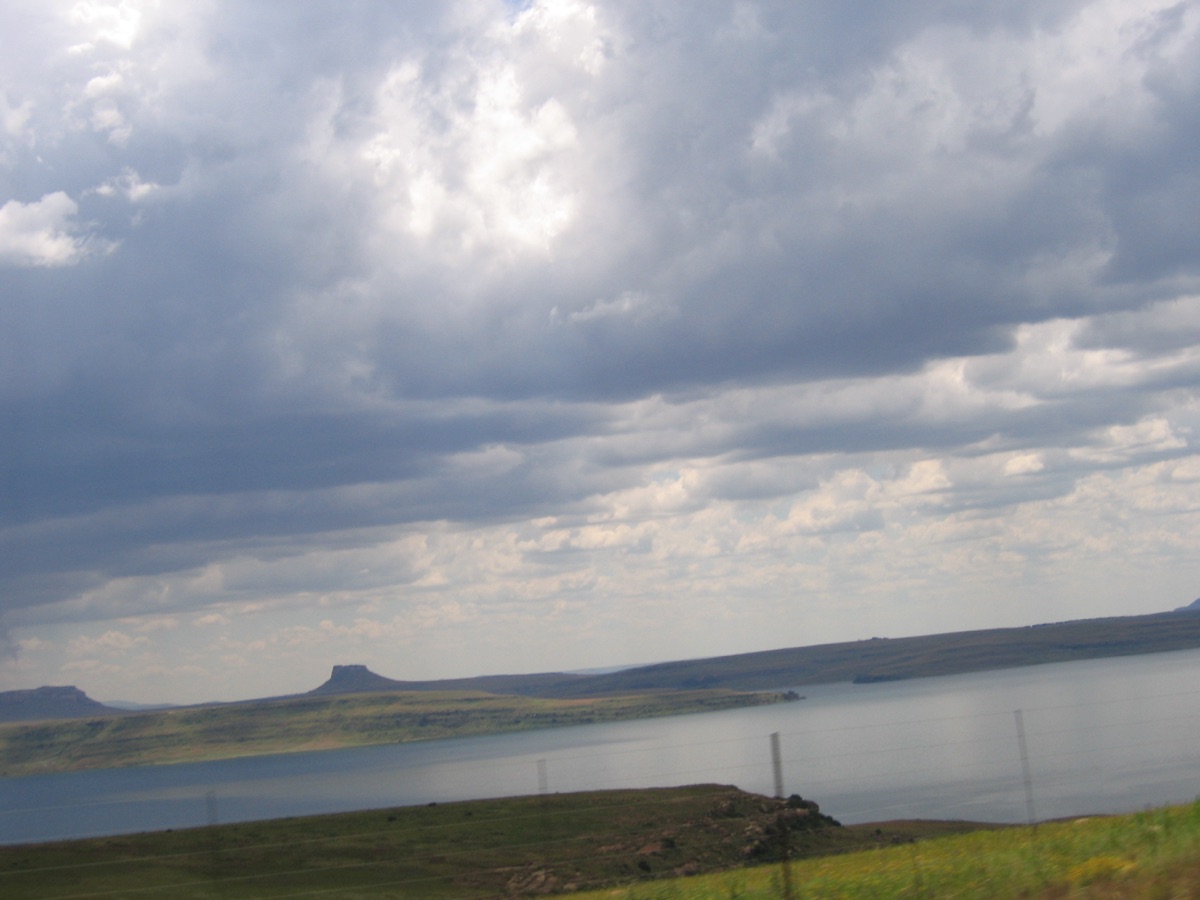
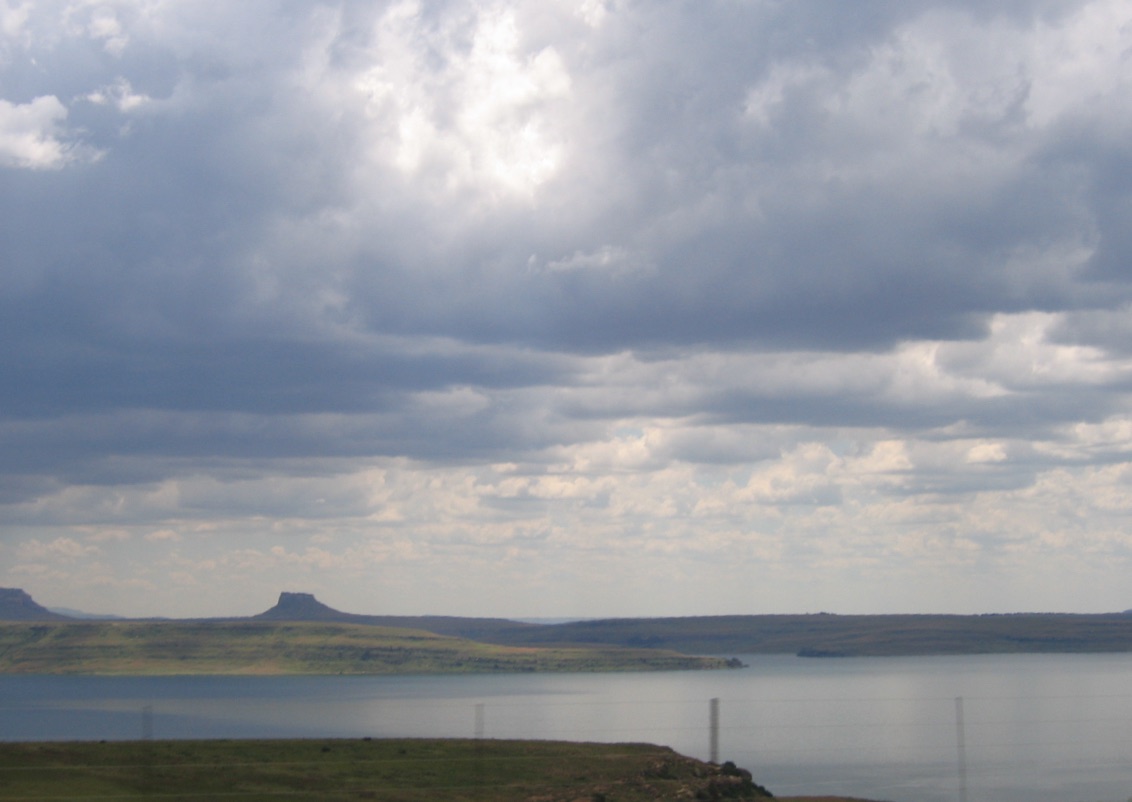
Straightens tilted photos, turns photos lying on their side and crops away unneeded borders – browser bars in screenshots, white margins around documents or memes, black bars. You see a preview before anything changes.

  • The original goes to the Trash
  • Photos from your library are edited non-destructively in Photos
  • Whole runs can be undone

Repair & convert videos

Rescues damaged videos and makes old formats playable again – as a modern MP4 file that every Mac, every iPhone and the Photos library understand.

  • Repair damaged videos: whatever is still readable goes into a new MP4 file
  • Convert old formats: AVI from old digital cameras, WMV, MKV, Xvid and Cinepak
  • Fast thanks to the Mac’s video chip, and often much smaller than before
  • Full check: plays every video once from start to finish and also finds errors in the middle
  • The recording date is kept. The original only goes to the Trash once the new file has been checked and is complete
Measured: a video from an old Canon camera, from 73 MB to 6 MB in one second.

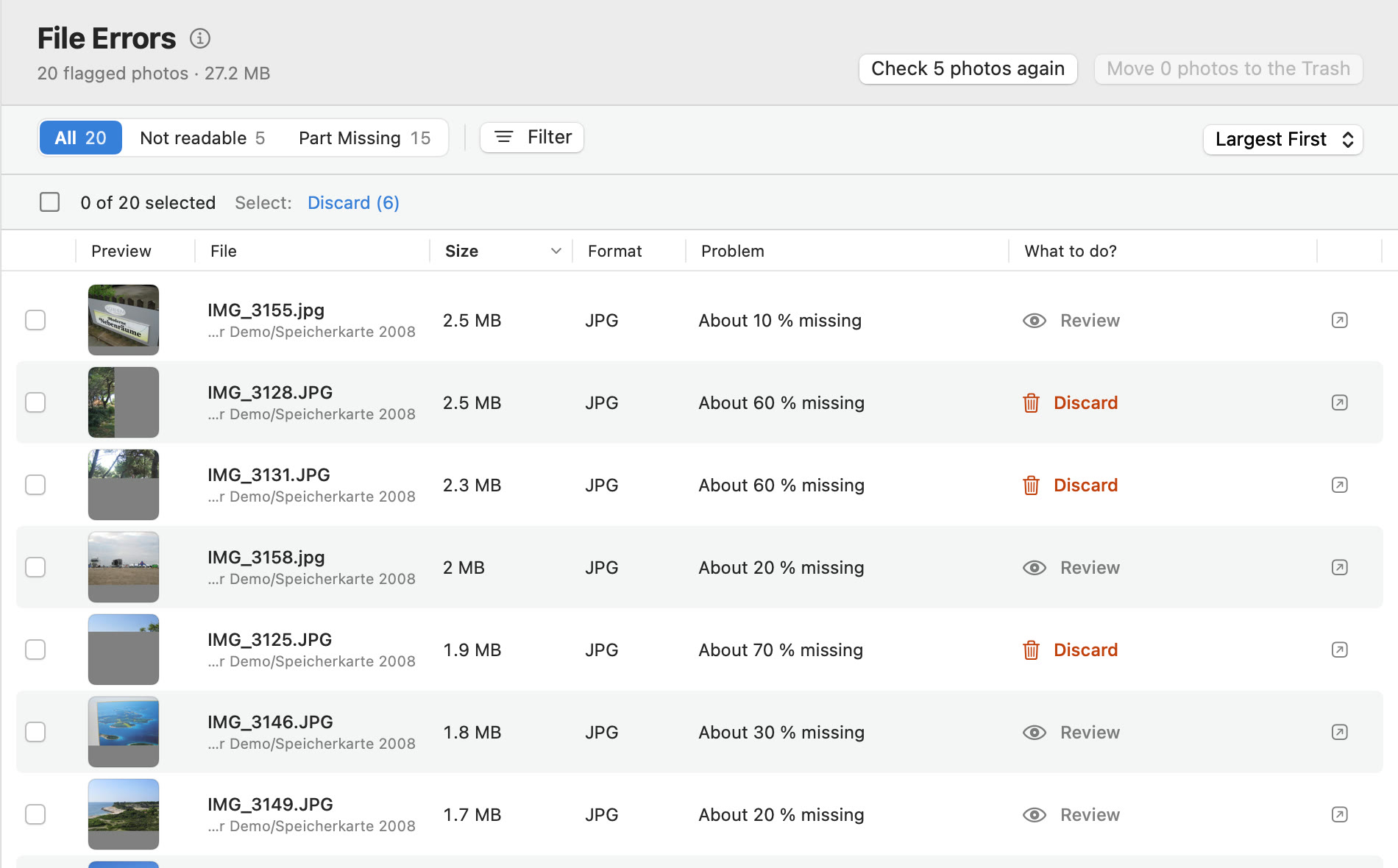
File errors

Finds photos and videos that no longer open properly – such as interrupted copies or incompletely saved files – and tells you what to do with each one.

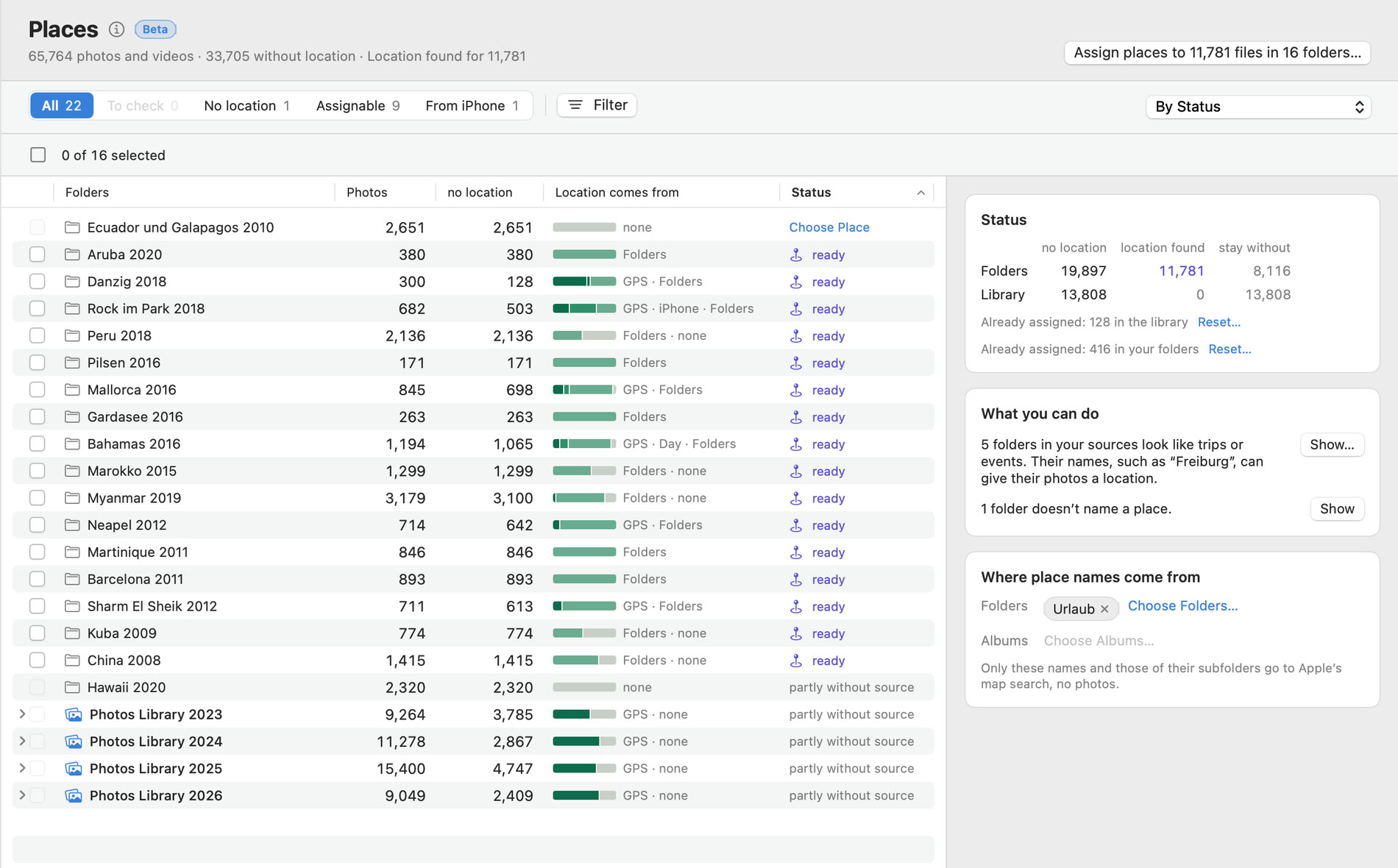
Places Beta

Fills in missing locations. Existing GPS data is never overwritten.

  • From iPhone photos taken at the same time – the camera clock is matched against the iPhone
  • From copies of the same photo that have GPS data
  • From folder names like “Peru 2018/Cusco”
  • A sample before anything is written; assigned places can be taken back

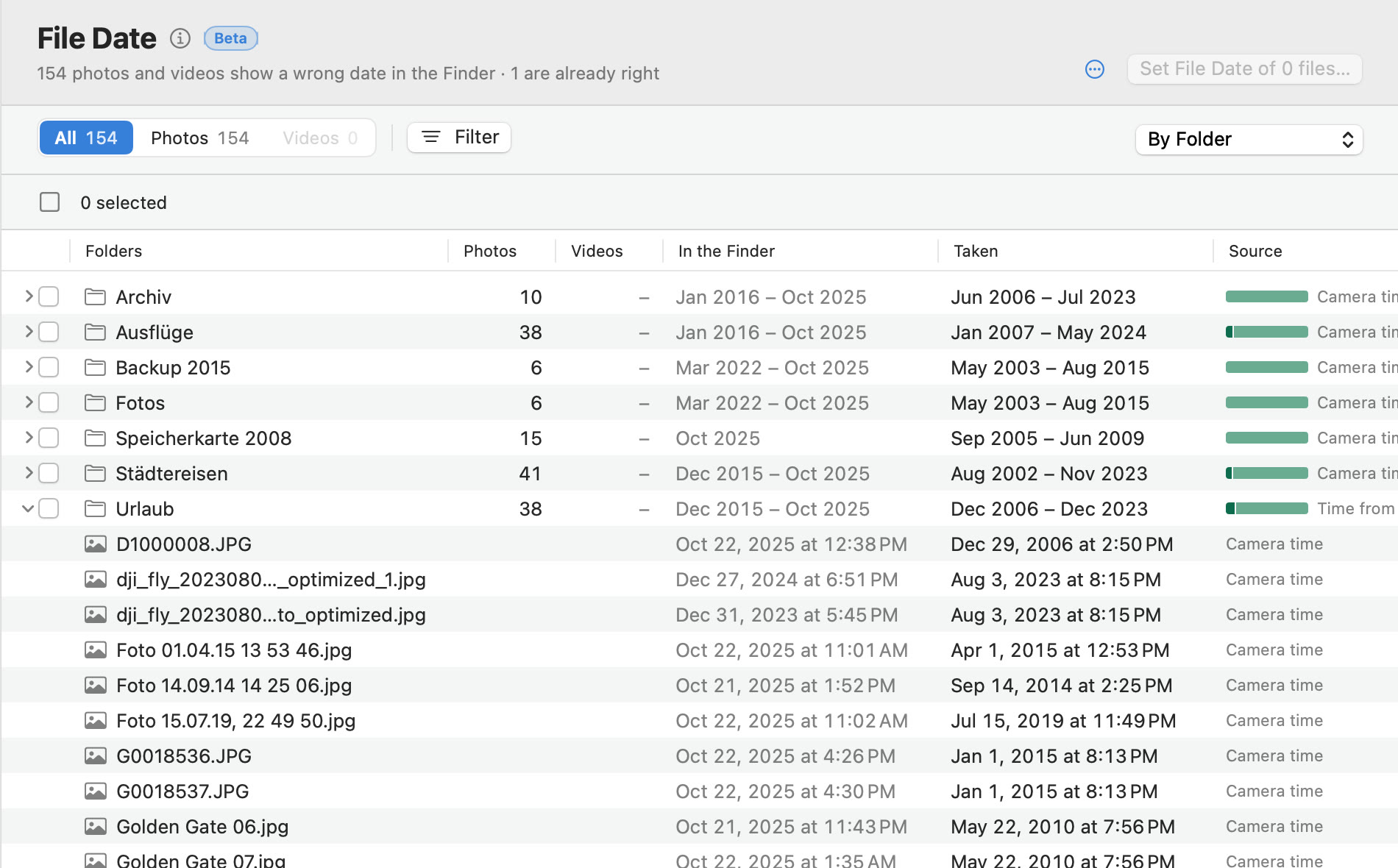
File dates Beta

When files are copied, macOS gives each one a new date. The Finder then shows when a photo was copied, not when it was taken. Media Thresher sets “Created” and “Modified” back to the capture time.

  • If a camera’s clock was wrong, the time is corrected using the iPhone photos from the same day
  • For every file, you can see where the time comes from
  • The content of the files stays unchanged, and the old date can be restored
From the demo collection: copied in 2025, taken in 2011.

Live Photos

A Live Photo is a photo plus a three-second video – and the video usually takes more space than the photo. Media Thresher turns them into regular photos. Just like on the iPhone, you can pick a different frame from the video.

  • All capture data is kept, plus favorite, albums, keywords, title and caption
  • Only once the new photo has been checked does the Live Photo go to “Recently Deleted”
  • In folders, only the short video goes to the Trash; the photo stays unchanged

Move

Moves photos and videos from folders into the Photos library, or exports them from the library into folders. It always transfers and verifies first, then cleans up.

  • One album per folder
  • Supports Live Photos and RAW+JPEG pairs

Sources

Wherever your photos live.

Media Thresher works with the Photos library, folders on your Mac, cloud folders and network storage.

Photos library

Including photos stored only in iCloud – they are downloaded in portions.

Folders on your Mac

Photos and videos in folders on your Mac.

Cloud folders

iCloud Drive, OneDrive, Dropbox, Google Drive and Box.

Network storage

NAS, for example from Synology or QNAP. Anything you sort out goes to the NAS recycle bin.

Privacy & safety

Your photos stay on your Mac.

All analysis runs locally, using the image recognition built into macOS. And anything you sort out can be restored.

Local

Analysed on your Mac

Photos and videos never leave your Mac – the analysis runs entirely on the device.

Minimal

Folder names and places only

Only for Places, the app asks Apple’s map search: with folder names like “Peru 2018/Cusco” and with coordinates to work out place names and time zones. Photos and videos stay on your Mac.

Reversible

Nothing deleted without asking

Files go to the trash of their location – the Mac’s Trash, the NAS recycle bin or “Recently Deleted” in Photos. Files are only deleted for good if you explicitly confirm it, for example on a NAS share without a recycle bin.

In control

Check first, then change

Straightening and cropping show a preview first, and whole runs can be undone, as can assigned places and file dates. When moving, converting and with Live Photos, files are transferred and verified before anything is cleaned up.

How it works

Four steps to a tidy collection.

1

Choose sources

Folders, NAS, cloud folders or the Photos library.

2

Let it analyse

Media Thresher examines your photos and videos right on your Mac.

3

Review

Look at the matches up close, adjust thresholds, accept or change the preselection.

4

Clean up

Whatever you sort out goes to the trash of its location – and can be restored.

FAQ

Good to know

Do my photos leave my Mac?

No. All analysis runs locally, using the image recognition built into macOS.

The only exception is Places: it asks Apple’s map search with folder names like “Peru 2018/Cusco” and with coordinates to work out place names and time zones. Photos and videos themselves are never transferred.

How large can my collection be?

There is no fixed limit. Media Thresher is built for large collections and is tested on a collection of around 250,000 photos and videos (more than 2.5 TB) on a NAS and in the Photos library.

The first analysis of a very large collection does take time, on a NAS several hours. You can pause it at any time, and it picks up where it left off. After that, the app only reads what is new or has changed.

What do I need?

A Mac with Apple silicon (M1 or later) and macOS 14 Sonoma or later. Media Thresher does not run on Intel-based Macs. The app is available in English and German.

Does it work with my NAS and with iCloud?

Media Thresher works with folders on your Mac, network storage such as Synology or QNAP, iCloud Drive, OneDrive, Dropbox, Google Drive and Box, and the Photos library – including photos stored only in iCloud, which are downloaded in portions.

Can I lose anything?

Media Thresher never deletes anything permanently without your explicit OK. Files go to the trash of their location – on your Mac, on your NAS or in “Recently Deleted” in Photos – and can be restored from there.

Since this is a beta, we still recommend a current backup.

Is Google Photos supported?

No. Since 31 March 2025, Google only lets other apps access photos and videos that the app uploaded itself. No other app can read your Google Photos library anymore, and Google’s interface never allowed deleting. So Media Thresher can neither find duplicates there nor clean anything up.

Supported are Apple’s Photos library, folders on your Mac and on your NAS, and cloud folders such as iCloud Drive, OneDrive, Dropbox, Google Drive and Box.

What does the beta cost?

Nothing. The beta is free. In return, we ask for your feedback – what works, what doesn’t and what’s unclear – in a short video call of 15 to 30 minutes.

How do I get the beta?

The beta is available on request. Send us a short note saying which Mac you use and where your photos are stored. We’ll then email you the download link. After a few days with the app, we’ll talk about your experience in a short video call (15–30 minutes). Participation is subject to our beta terms.

How does Media Thresher find missing places?

For every photo without a location, the app looks for the best source, in this order:

A copy with a place. If the same shot exists once more, for example in the Photos library, and it has a place, the photo takes it over.

The iPhone at the same time. A camera photo gets the place of an iPhone photo taken shortly before or after. To do this, the app matches the camera’s clock against the iPhone.

The folder name. “Peru 2018/Cusco” becomes Cusco in Peru, via Apple’s map search.

A photo from the same day. Whatever has no other source gets the place of a photo in the same folder taken in the hours before or after.

Before writing anything, the app shows a sample. Places are only written when you start it: to the Photos library through Photos, to files with ExifTool. It can be undone.

Will existing locations be overwritten?

No. Photos that already have GPS data never get a different location – whatever the source.

Can the app rescue broken videos?

Often, yes. Media Thresher checks the videos in your folders and rescues whatever is still readable from damaged files into a new MP4 file. The original stays in place until the repair is complete.

Old formats such as AVI, WMV or MKV are converted to MP4, keeping the recording date. Copy-protected videos are recognised, and the app tells you that nothing can be rescued there.

During the analysis, the app takes a quick look at every video. The full check plays every video once from start to finish and so also finds errors in the middle; you can pause it at any time.

Why does the Finder show the wrong date for so many photos?

When files are copied, macOS gives each one a new date. If you ever copied your photos to a NAS or a new drive, the Finder often shows the date of that copy. The actual capture time is still stored in the photo itself (in its EXIF data).

The File dates tool sets “Created” and “Modified” back to the capture time. For phones, that is the real time from the file. If a camera’s clock was wrong, the app corrects the time using the iPhone photos from the same day. The content of the files stays unchanged, and the old date can be restored.

What happens to my Live Photos?

Only what you select becomes a regular photo. The new photo carries all capture data and takes over favorite, albums, keywords, title and caption. Only once it has been checked does the Live Photo go to “Recently Deleted”, where you can get it back for 30 days.

Just like on the iPhone, you can pick a different frame from the video as the photo. Live Photos with an effect, such as Loop or Long Exposure, stay as they are.

What does “Beta” mean for Places and File dates?

Both tools write to real files and are new. Try them on a few folders first and check the result. Both can be undone: assigned places as well as the old file date.

Can I look at a photo up close before sorting it out?

Yes. A click on a thumbnail opens the photo large. There you browse with the arrow keys, select or deselect with the space bar, and for straightening and cropping you see the result in advance. Next to each heading, the (i) explains what the section does and what happens to your files.

Beta

Try it for free. Tell us honestly.

Media Thresher is in beta. You get the app for free, we get your feedback – so Media Thresher gets even better with real collections.

The beta is available on request: tell us briefly which Mac you use. We’ll email you the download link. In return, we ask for your feedback in a short video call (15–30 minutes). Our beta terms apply.

Mac
With Apple silicon (M1 or later)Intel-based Macs are not supported
System
macOS 14 or later
Size
31 MB
Language
English, German
Price
Free during the beta
Access
On request

What matters to us in your feedback

False matches

Was something flagged as a duplicate, blurry or a screenshot when it isn’t? Was something missed, or a location assigned wrongly?

Speed

How fast is the analysis with your NAS, with cloud folders or with a large Photos library?

Clarity

Are texts, hints and buttons clear – in English and in German?

Crashes & hangs

Where did something go wrong, and what did you do just before?

Screenshots often help us with the analysis, and we treat your data confidentially. A short description, your macOS version and the type of source (for example NAS or iCloud) help us too. How we handle your message is described in our privacy policy.

Apple, Mac, macOS, iCloud, iPhone and Live Photos are trademarks of Apple Inc. Synology, QNAP, OneDrive, Dropbox, Google Drive, Google Photos and Box are trademarks of their respective owners. Media Thresher is not affiliated with these companies.